AI Sticker Remover

Remove Stickers from Images

Upload your image, let AI automatically remove unwanted stickers and emoji, and compare the result before downloading. No brushing or prompt required.

AI generates a replacement for the covered area. It cannot recover the original details hidden beneath an opaque sticker.

Your first Fast edit is free without signing in · Sign up for 1 more free Fast edit

Use photos you own or are authorized to edit, and respect the privacy and portrait rights of people shown. In group or event photos, obtain appropriate consent before publishing materially altered images. AI estimates the hidden background; keep the original when authenticity matters.

No brush selection or prompt is required. Review the entire image because automatic processing may change more than the overlay you had in mind.

Examples

Sticker Removal Examples: Inputs and Results

Explore five different overlay scenarios. Slide landscape comparisons, or inspect portrait images side by side. Review the filled area and nearby details rather than assuming the hidden original has been restored.

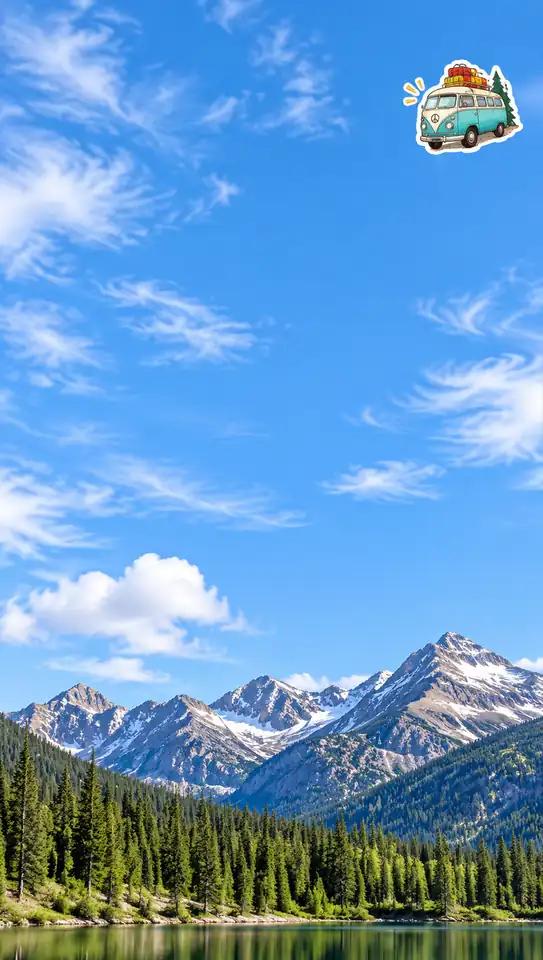
Mountain lake and blue sky with a camper-van sticker in the upper corner
Before
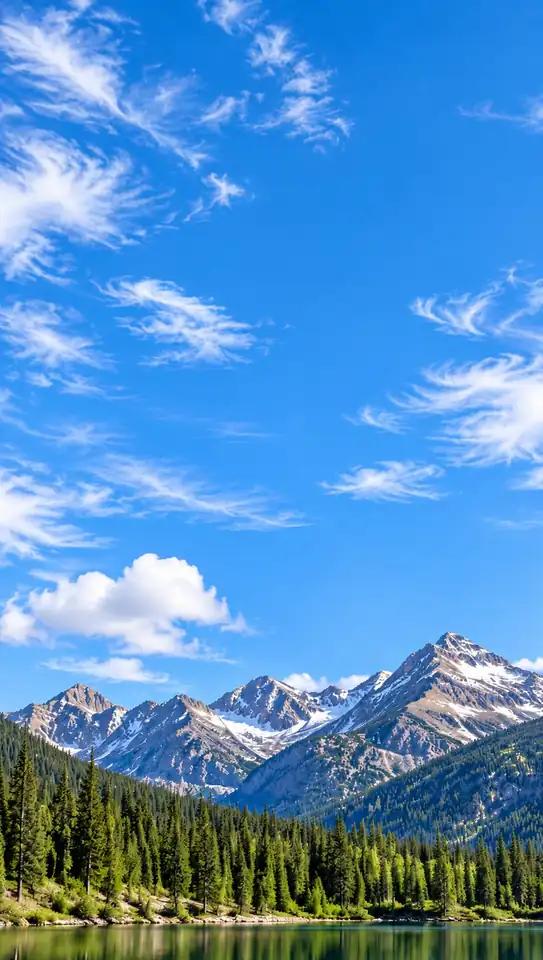
Remove a Decorative Sticker from a Travel Photo: result after overlay removal
After

Remove a Decorative Sticker from a Travel Photo

A camper-van sticker sits over the blue sky in this mountain scene. Automatic processing can attempt to fill the overlay while keeping the clouds, peaks, forest, and lake in view.

What to check: Inspect the sky gradient, white sticker outline, and nearby wispy clouds. The mountain silhouette should remain consistent.
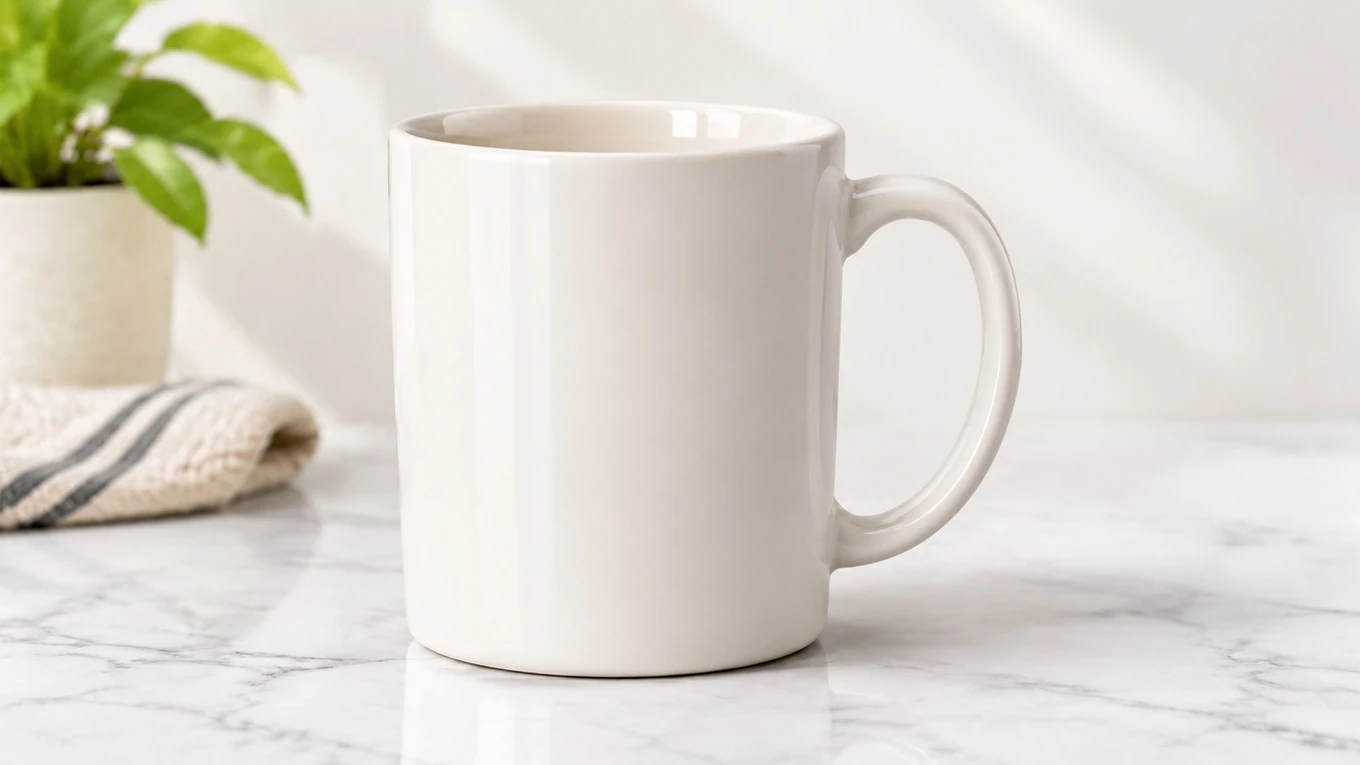
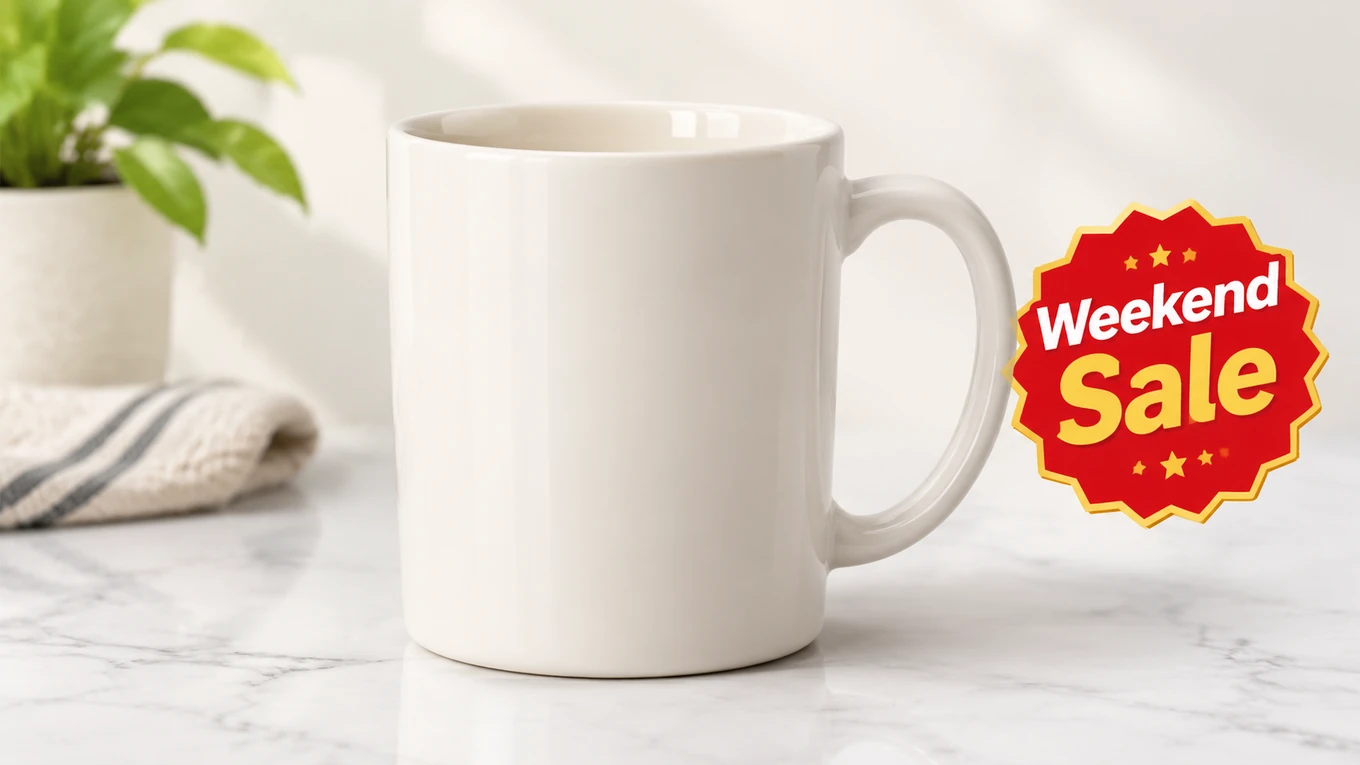
Clear an Old Promotional Badge from a Product Image: supplied result after removal of the overlayWhite ceramic mug with a red and yellow Weekend Sale badge beside the handle

Clear an Old Promotional Badge from a Product Image

A Weekend Sale badge sits beside a white ceramic mug. This example is intended to show cleanup of an outdated graphic on an image you own, without treating generated product detail as factual.

What to check: Review the mug handle, ceramic finish, background, and any remaining letters or badge outline.
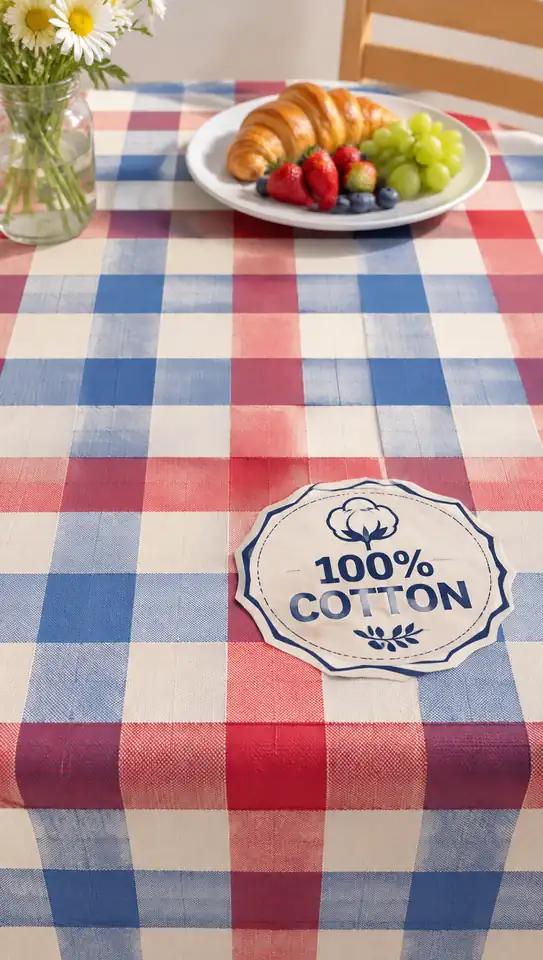
Checked tablecloth with a cotton-label sticker beneath a breakfast plate
Before
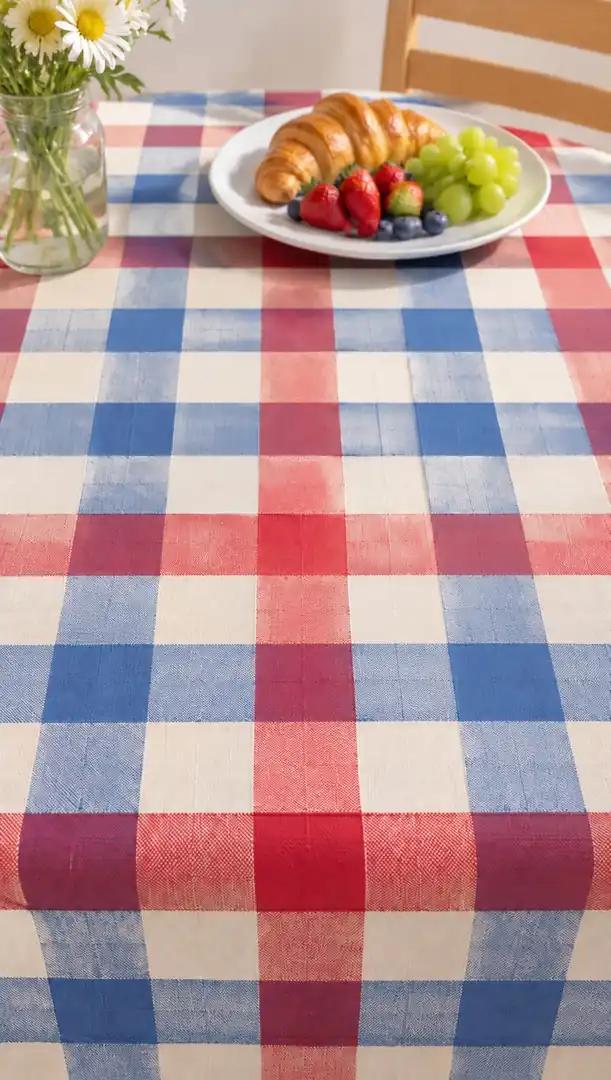
Remove a Sticker over a Patterned Background: result after overlay removal
After

Remove a Sticker over a Patterned Background

A cotton-label sticker covers part of a red, blue, and white checked tablecloth. Repeating patterns make incorrect fills especially visible, so the grid needs a close review.

What to check: Compare the spacing, alignment, and colors of the checks. Look for broken lines, repeated blocks, or a remaining sticker edge.
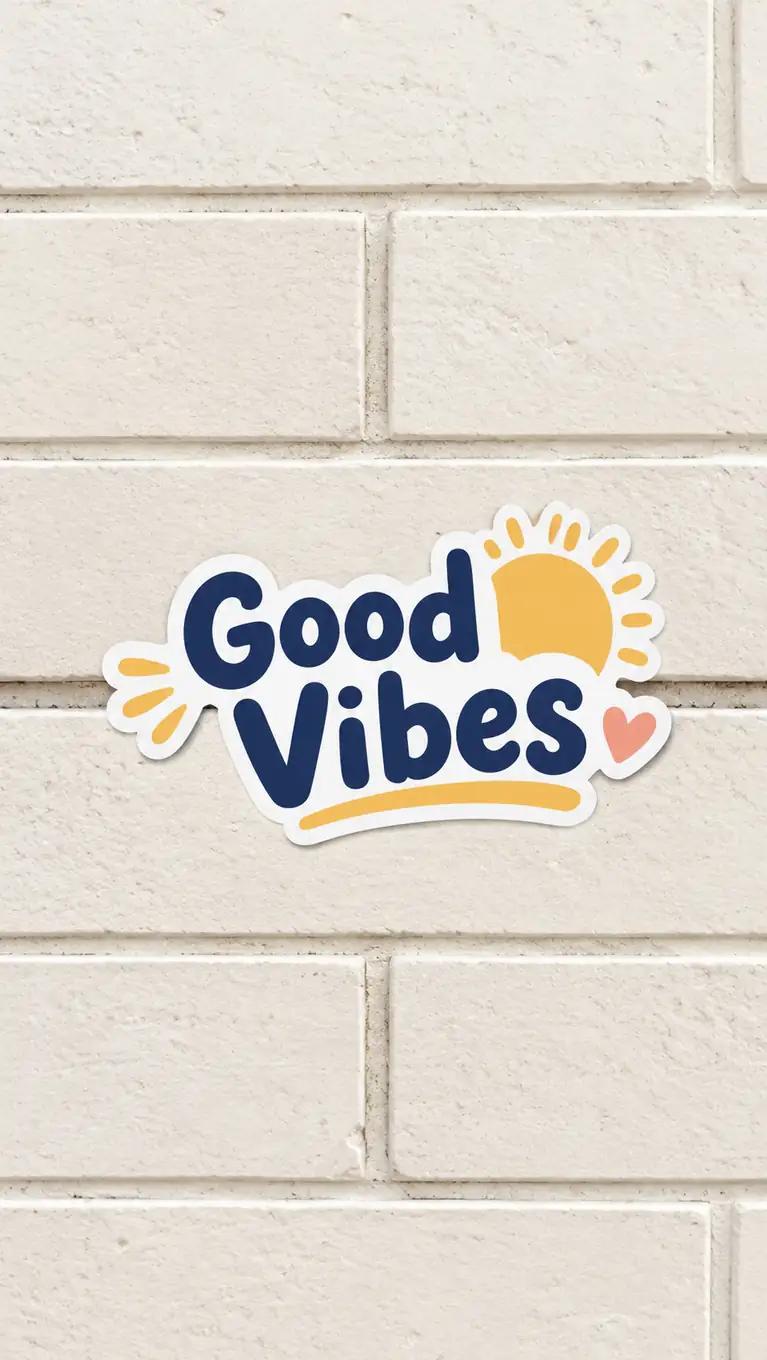
Good Vibes decorative sticker covering horizontal joints on a light brick wall
Before
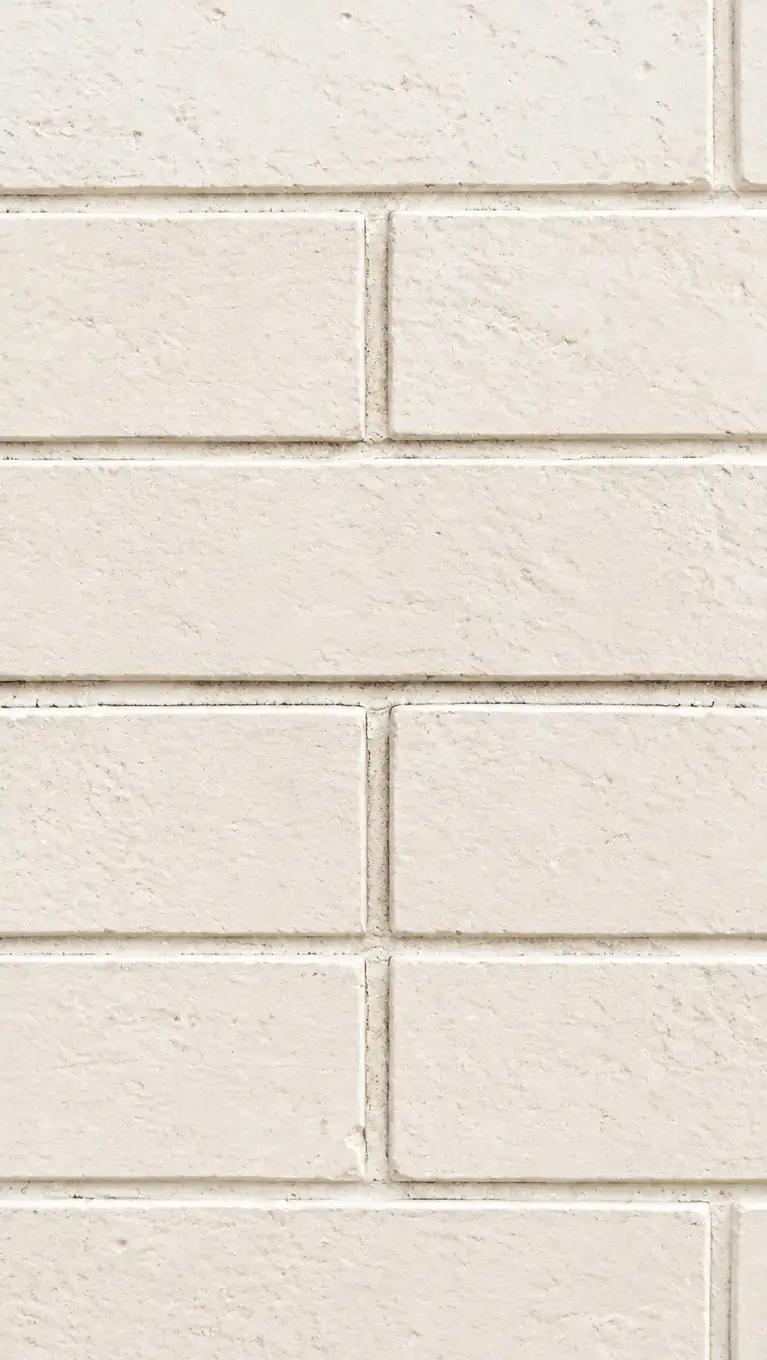
Clean a Decorative Sticker from a Wall Photo: result after overlay removal
After

Clean a Decorative Sticker from a Wall Photo

A Good Vibes sticker crosses the joints of a light brick wall. AI needs to estimate both the wall texture and the hidden seam, rather than simply flattening the area into one color.

What to check: Check that the mortar lines do not bend, split, or disappear, and inspect the former white sticker border.
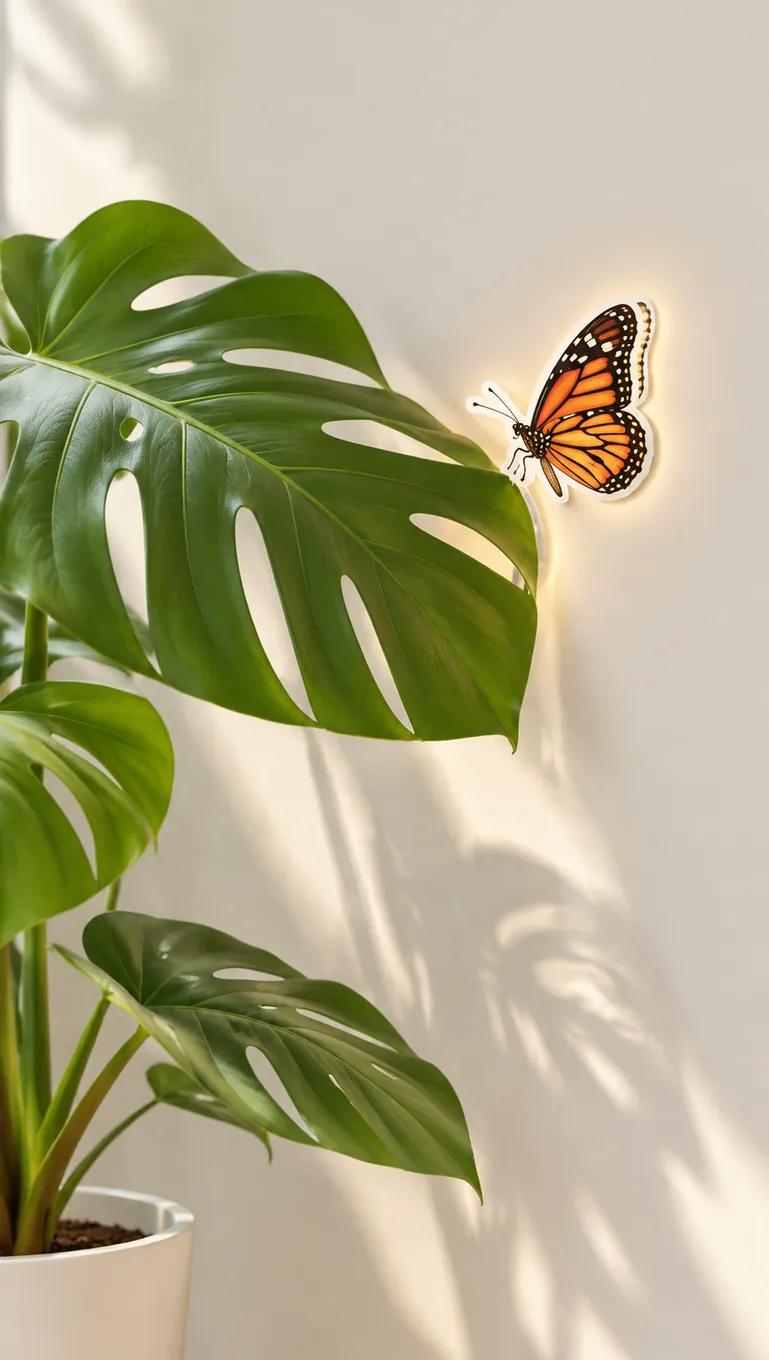
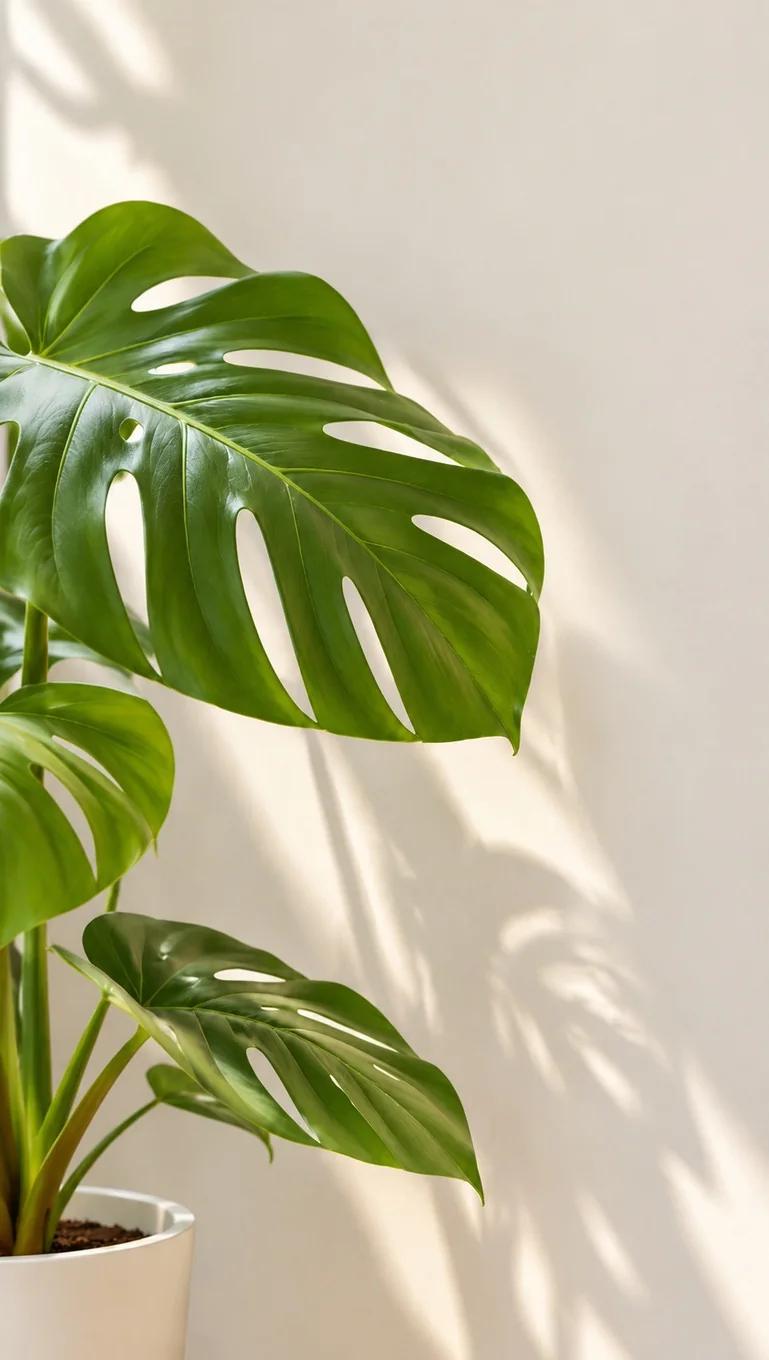
Butterfly sticker with a glowing outline beside a green monstera leaf
Before
Remove a Sticker near Fine Subject Edges: result after overlay removal
After

Remove a Sticker near Fine Subject Edges

A butterfly sticker with a glowing outline sits beside a monstera leaf. This input highlights the need to review delicate subject edges after automatic overlay removal.

What to check: Inspect the leaf tip, holes, fine edges, and wall lighting. Watch for leftover glow, missing leaf detail, or newly generated foliage.
How it works

How to Remove a Sticker from an Image

Step 1

Upload your image

Choose the photo you want to edit and open it in the editor. Keep an untouched copy of the original.

Step 2

Submit for automatic processing

Check the displayed cost, then select Remove Stickers. No brushing, selection, or written instructions are needed.

Step 3

Review and download

Compare the AI result with your original. Inspect nearby details and download the image when you are satisfied.

Clean Up Stickers, Emoji, and Decorative Overlays

A sticker can cover a small part of an otherwise useful photo. AI identifies overlays and generates a fill based on the surrounding scene. Review all changes, because automatic processing may also change elements you wanted to keep.

Sky and smooth backgrounds

Inspect gradients and clouds for color patches or a remaining white outline. Compare the horizon and the surrounding sky with your original.

Emoji on textured surfaces

Check wood grain, repeating patterns, and the emoji’s former shadow. A sticker disappearing does not mean the surrounding texture is correct.

Promotional badges near products

Check the product outline, color, and any visible label. AI cannot restore accurate product details hidden beneath an opaque badge.

Patterns and straight lines

Look for broken grid lines, bent wall seams, or repeated texture blocks. Keep the source image if the generated structure looks wrong.

Fine subject edges

Review leaves, hair, and other delicate edges for unintended changes after automatic processing.

What to Know About This AI Sticker Remover

What is this tool?

RemoveObjectFromPhoto is an AI image editor that automatically removes unwanted overlays and fills the affected areas. This page focuses on removing unwanted stickers, emoji, and decorative overlays from flattened images.

Who is it for?

Photo owners, creators, and online sellers cleaning up images they own or are authorized to edit.

What task does it solve?

Remove an unwanted overlay without manually marking it or cropping the image. AI identifies areas to edit; compare the entire result with the original.

How is it different from editing the original?

Deleting a sticker layer from an editable file reveals the source pixels. AI filling a flattened photo creates an approximation instead. Use the original file when accuracy matters.

What should I do next?

Upload a clear image and review the displayed cost before submitting. AI processes the image automatically; inspect the fill and nearby edges before saving.

Compare your options

Choose the Right Way to Remove an Overlay

Start with your original file when available, or choose the approach that fits your image.

Edit the original file

Remove the sticker layer when you still have an editable file. This reveals the original pixels; this page is not a layer editor.

Crop the image

Cropping can exclude a sticker near the edge, but also removes useful context. Cropping is an alternative workflow, not a promised control here.

Use AI fill

Generate a replacement in the affected area and review it closely. AI does not restore the hidden original.

Check the Filled Area Before Sharing

Look for leftover outlines, repeated patterns, bent lines, and changes to nearby subjects. If an important detail looks wrong, keep the original or try a different source image instead of treating the generated fill as factual.

Before uploading, read our Privacy Policy. Only use images you own or are authorized to edit.

Questions About Removing Stickers from Images

Need to Clean Up Something Else?

Open the general AI object remover for other unwanted objects, or remove text from an image for lettering rather than a decorative overlay.

Ready to Remove an Unwanted Sticker?

Choose your image, submit for automatic processing, and inspect the AI fill before saving the result.

Upload Image