Automatic photo shadow reduction

Remove Shadows from Photos

Reduce unwanted cast shadows and harsh shading with AI. Upload your image and process it automatically—no brushing required.

JPG, PNG or WebP·Up to 10 MB·Compare before downloading

Your first Fast edit is free without signing in · Sign up for 1 more free Fast edit

Use photos you own or are authorized to edit, and respect the privacy and portrait rights of people shown. In group or event photos, obtain appropriate consent before publishing materially altered images. AI estimates the hidden background; keep the original when authenticity matters.

Before and after

Photo Shadow Removal Examples

Compare each source photo with its processed result, then upload your own image to review the changes.

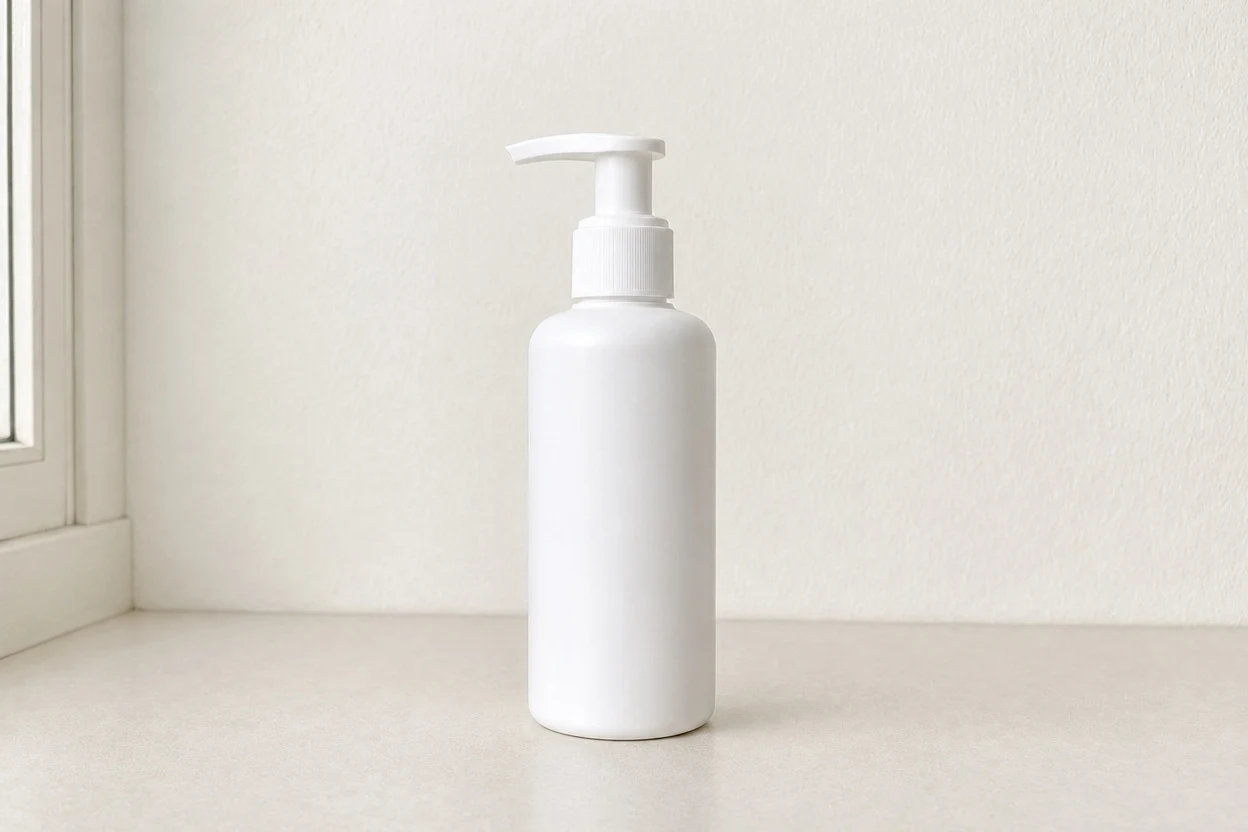
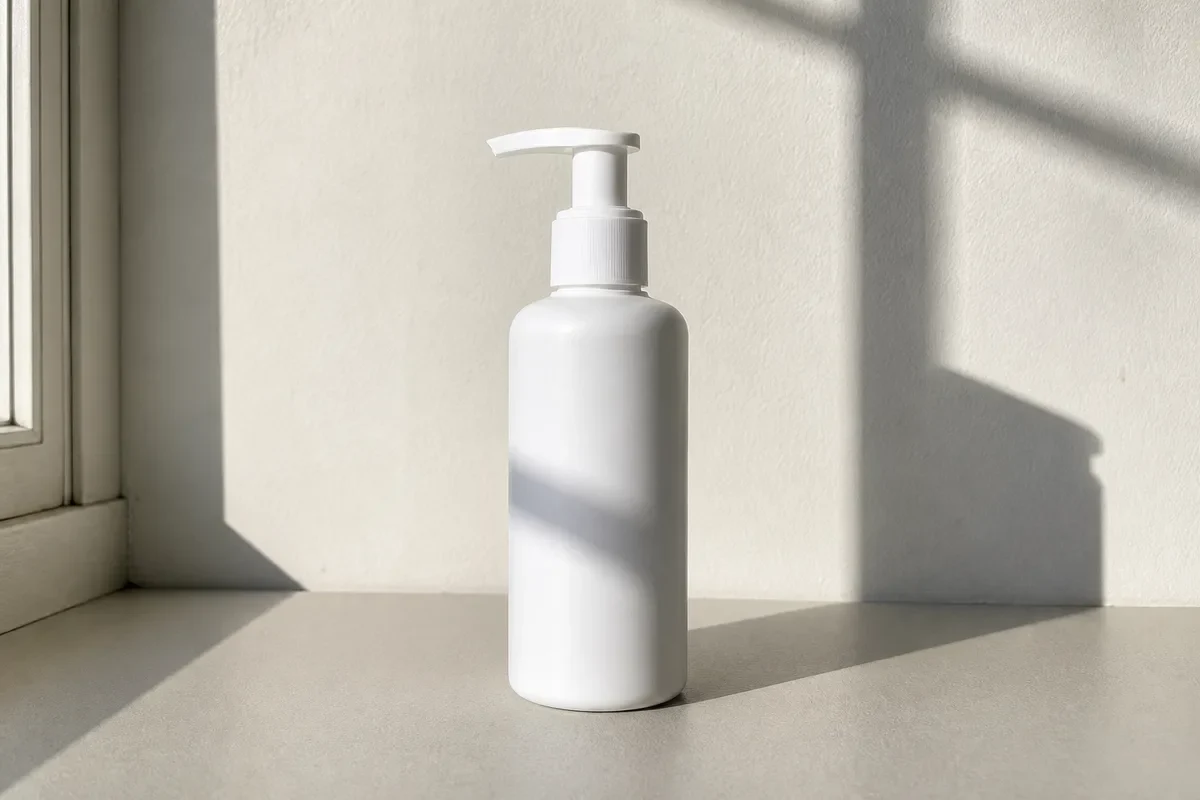
Same white pump bottle after removing the hard window shadowsWhite pump bottle with strong window shadows across the product and background

Reduce Harsh Shadows in Product Photos

Strong window light casts hard lines across the bottle, wall, and surface. The processed result removes the distracting cast shadows while retaining the pump, bottle shape, neutral color, and textured background.

The large wall shadow and diagonal bands are removed; a soft contact shadow remains beneath the bottle so it still sits naturally on the surface.
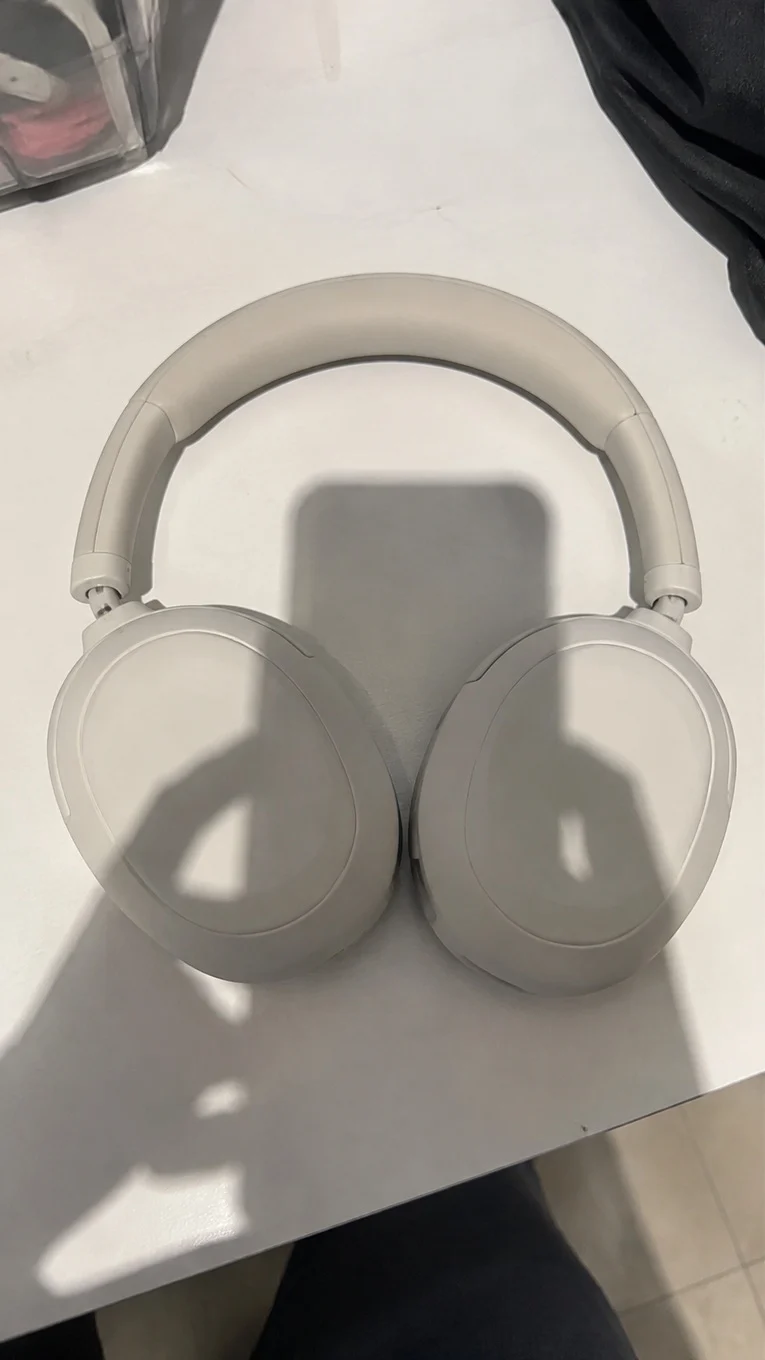
Phone shadow falling across white headphones in a tabletop photo
Before
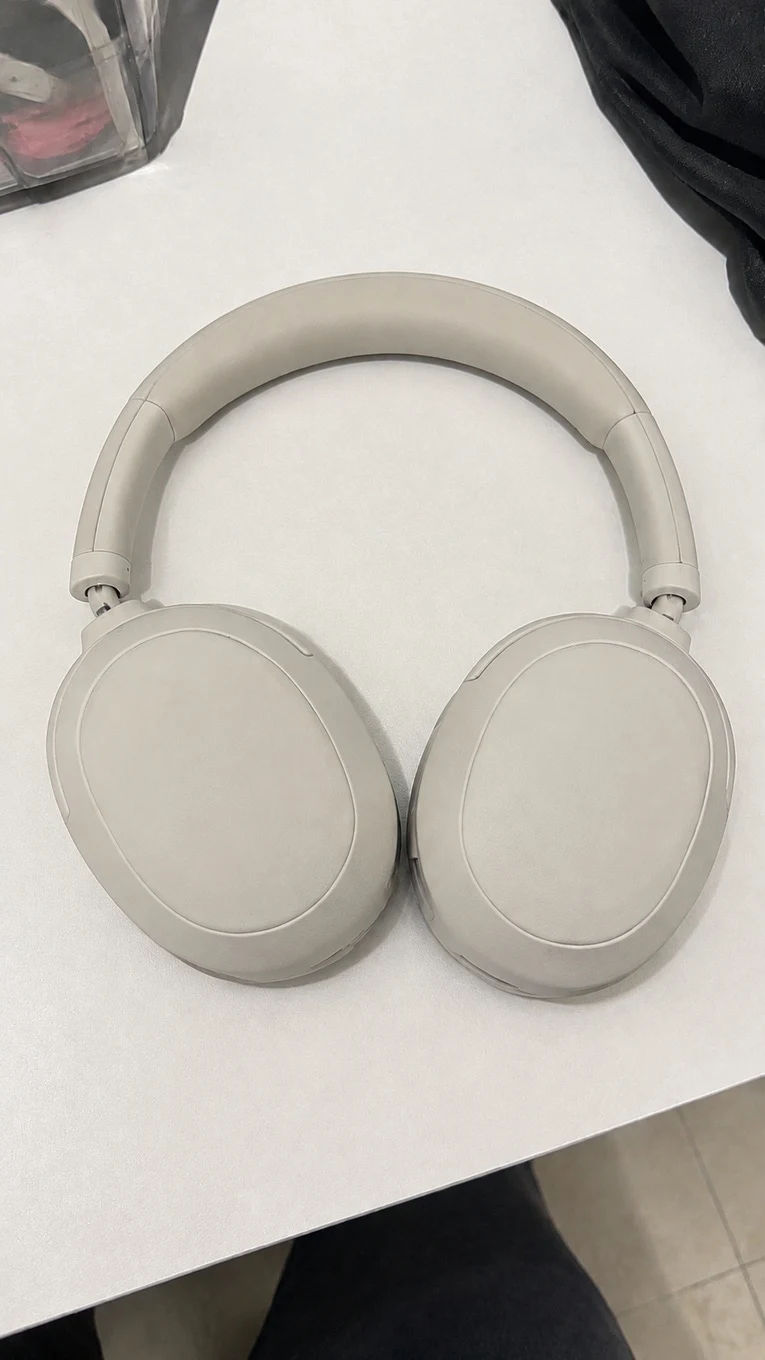
Same white headphones after removing the phone and photographer shadows
After

Reduce Phone Shadows on Products

A phone and photographer cast recognizable shapes across the headphones during an overhead shot. Processing clears those shapes without removing the product or changing the tabletop composition.

The ear cups, headband seams, highlights, table edge, and surrounding objects remain visible after the heavy shadows are reduced.
Same portrait with more even facial lighting and reduced side shadowPortrait with strong side lighting and a deep shadow across one side of the face

Soften Harsh Shadows in Portraits

Uneven side lighting leaves one half of the face much darker than the other. The result balances the facial light while retaining the glasses, expression, hair, clothing, and colored background.

The eyes and facial features are clearer, while the warm background gradient and natural face shape remain recognizable.
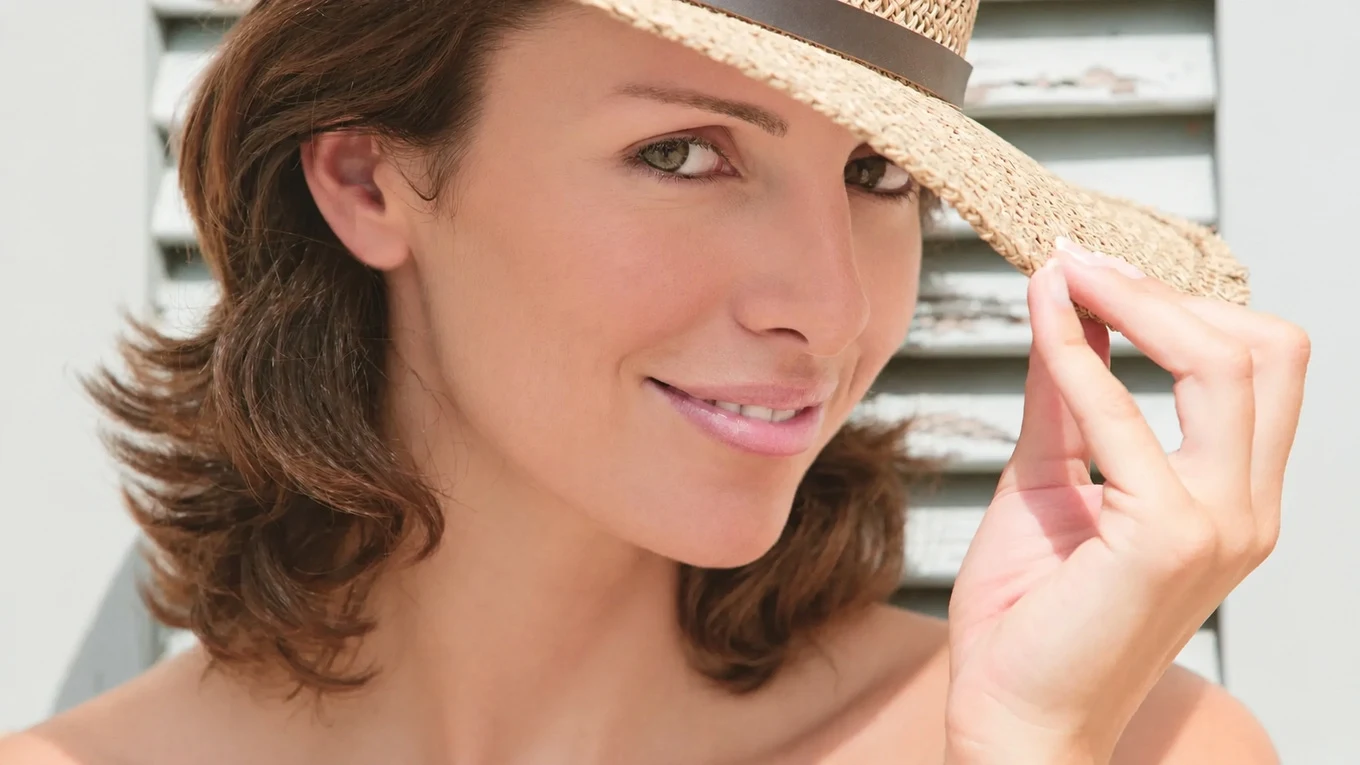
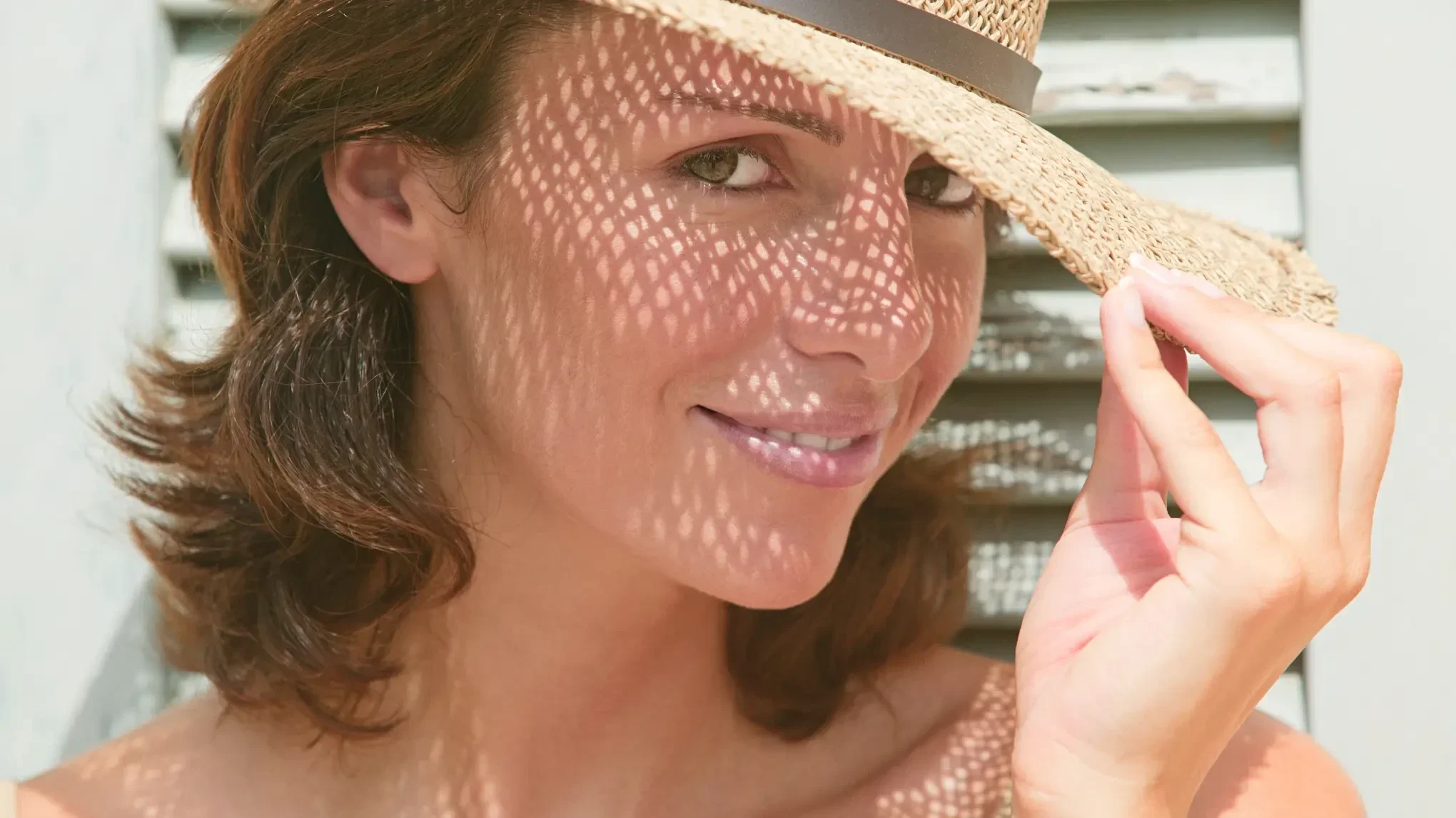
Same portrait after removing the patterned hat shadow from the faceClose portrait with a woven hat casting patterned shadows across the face

Reduce Hat Shadows on a Face

A woven hat creates a complex pattern across the eyes, cheeks, and forehead. The processed image clears that pattern while keeping the hat, hand, face, hair, and outdoor background.

The eyes and skin are easier to see, and the subject keeps the same expression, pose, hat shape, and hand position.
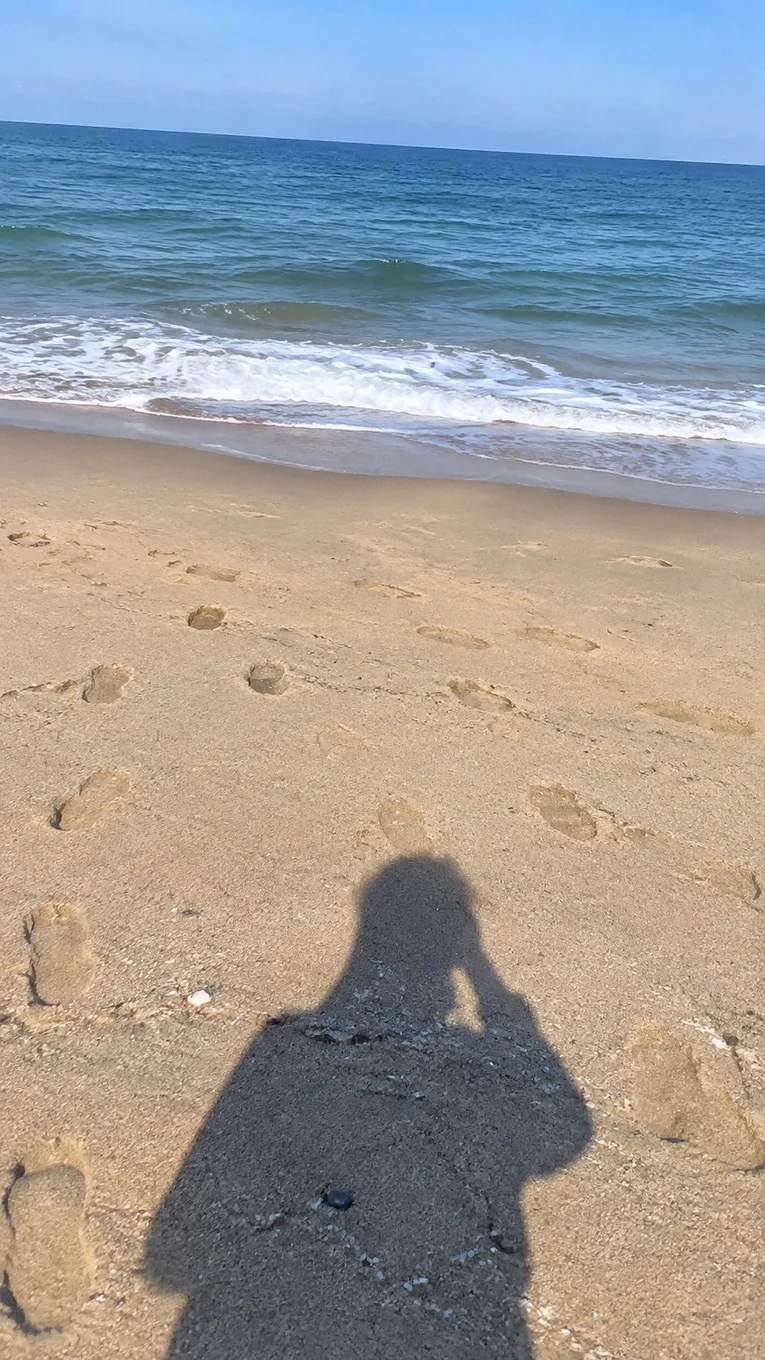
Photographer shadow extending across beach sand with visible footprints
Before
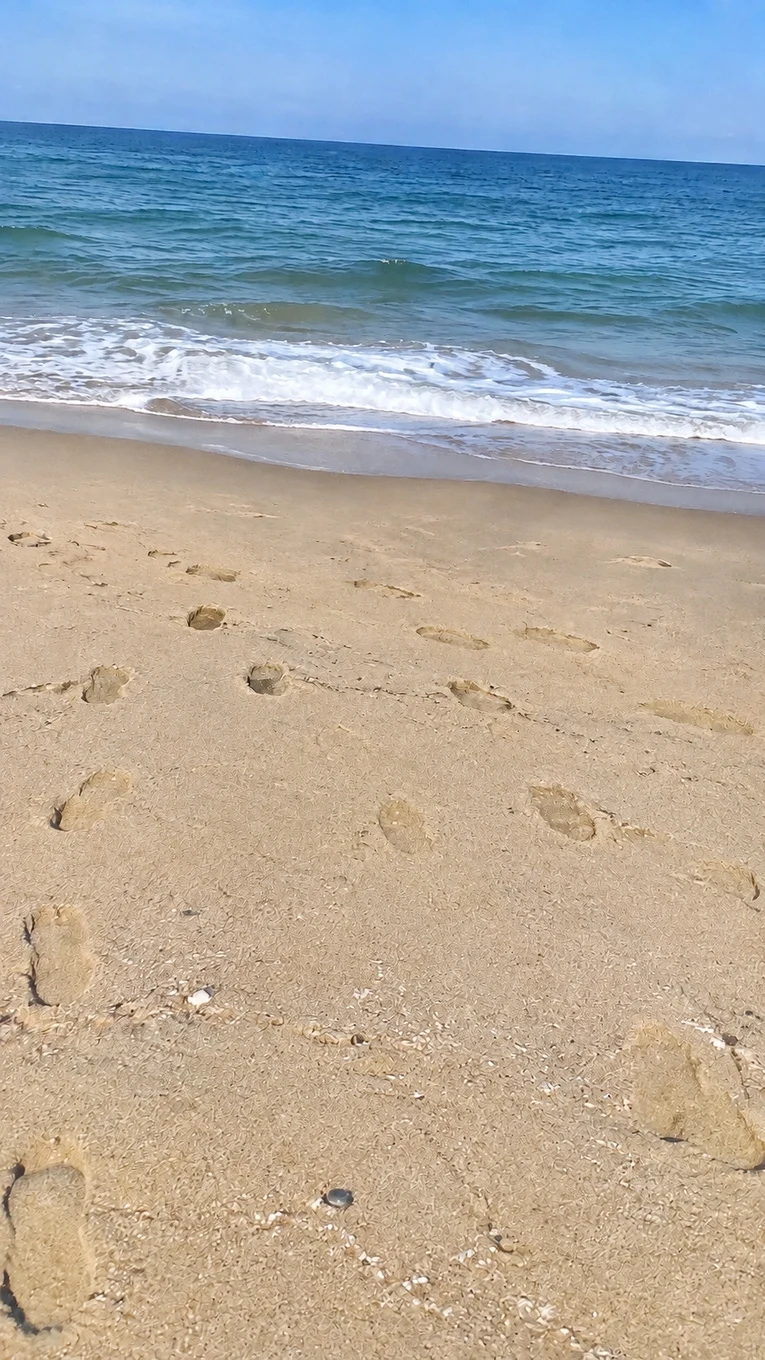
Same beach sand after removing the photographer shadow while preserving the footprints
After

Remove a Photographer Shadow from Sand

A photographer shadow can enter the foreground of a travel photo even when the person remains outside the frame. The processed result clears the dark silhouette while retaining the surrounding footprints and granular sand texture.

The photographer shadow is removed while the nearby footprints, uneven sand, and original vertical framing remain visible.
Focused workflow

An AI Shadow Remover for Everyday Photos

A phone, nearby light, or photographer can cast a distracting shadow across a useful photo. This tool focuses on reducing that shading while keeping the subject and scene recognizable.

What it is

An automatic photo editor that asks AI to reduce unwanted cast shadows and harsh shading while preserving the original framing, colors, details, and natural depth.

Who it is for

Online sellers, portrait owners, travelers, and everyday photographers whose useful image is affected by a distracting shadow from a person, phone, camera, lamp, or nearby object.

What task it solves

It processes one uploaded photo, reduces unwanted dark areas, and returns an edited image for comparison. It does not remove the object casting the shadow or create a transparent background.

How it differs

Unlike clone stamps or manual selections, this workflow does not require painting over the shadow. Professional layered editing still offers finer control when exact pixel-level correction is required.

What to do next

Upload the clearest original available, run the automatic edit, then inspect colors, edges, faces, and textures against the source before downloading.

How it works

How to Remove a Shadow from a Photo

Step 1

Upload your photo

Choose a JPG, PNG, or WebP image up to 10 MB. Uploading alone does not start processing.

Step 2

Process automatically

Select Remove Shadows to start the edit. No brush, prompt, scene preset, or strength setting is required.

Step 3

Compare and download

Inspect the result against the original and download it only when important details and natural depth still look right.

Natural results

Keep the Shadows That Make a Photo Look Natural

Some shadows show where an object touches a surface or help a face look three-dimensional. Removing every shadow can make a product appear to float or a portrait look flat. The goal is to reduce distracting shadows while keeping a believable sense of depth.

Background cast shadows

For shadows on a wall, floor, table, or sand, inspect the repaired surface texture and the edges of nearby people or products.

Shadows across a subject

When shading crosses a face, product, or clothing, compare skin tone, labels, buttons, patterns, and color with the original.

Very dark hidden detail

AI cannot recover the real pixels that are no longer visible. Deep shadows may require generated detail, so keep the original whenever accuracy matters.

Result review

What to Check After Removing Shadows

Automatic edits can change details where a dark shadow overlaps important content. Compare the full image before saving the result.

Products and surfaces

Check labels, buttons, scratches, surface marks, product colors, background texture, and natural contact shadows.

Faces and clothing

Confirm that eyes, facial features, skin texture, expression, hair edges, clothing patterns, and body shape still match.

Ground and framing

Look for altered footprints, paving, sand, grass, stretched edges, unexpected cropping, or changes outside the shadowed area.

Current scope

When to Use a Different Photo Workflow

Shadow reduction is not the same task as object removal, reflection cleanup, background removal, or document restoration.

Documents and receipts

Do not rely on generative shadow removal where every letter, number, formula, signature, or chart must remain exact.

Glare and reflections

Use the dedicated glasses glare remover for reflections on eyeglass lenses. Sun flare and glass reflections require different processing.

Objects and backgrounds

Use the general object remover when the item itself should disappear. This page keeps the scene and changes unwanted shading instead.

FAQ

Frequently Asked Questions