 RemoveObjectFromPhoto
Upload your image
Choose a clear JPG, PNG or WebP image up to 10 MB.
Erase captions, dates, labels, and unwanted writing from image pixels. Brush over the text and review the AI-generated background before downloading.
Sign in to process your selection · 1 free credit for new accounts
Only upload images you own or are authorized to edit. AI creates a plausible replacement; it does not recover hidden original content.
Select only what should disappear and keep the rest of the image visible for review.
Choose a clear JPG, PNG or WebP image up to 10 MB.
Adjust the brush, cover the complete object, and erase any selection that crosses an edge.
Choose Fast or Pro, review the reconstructed area, then download the AI result.
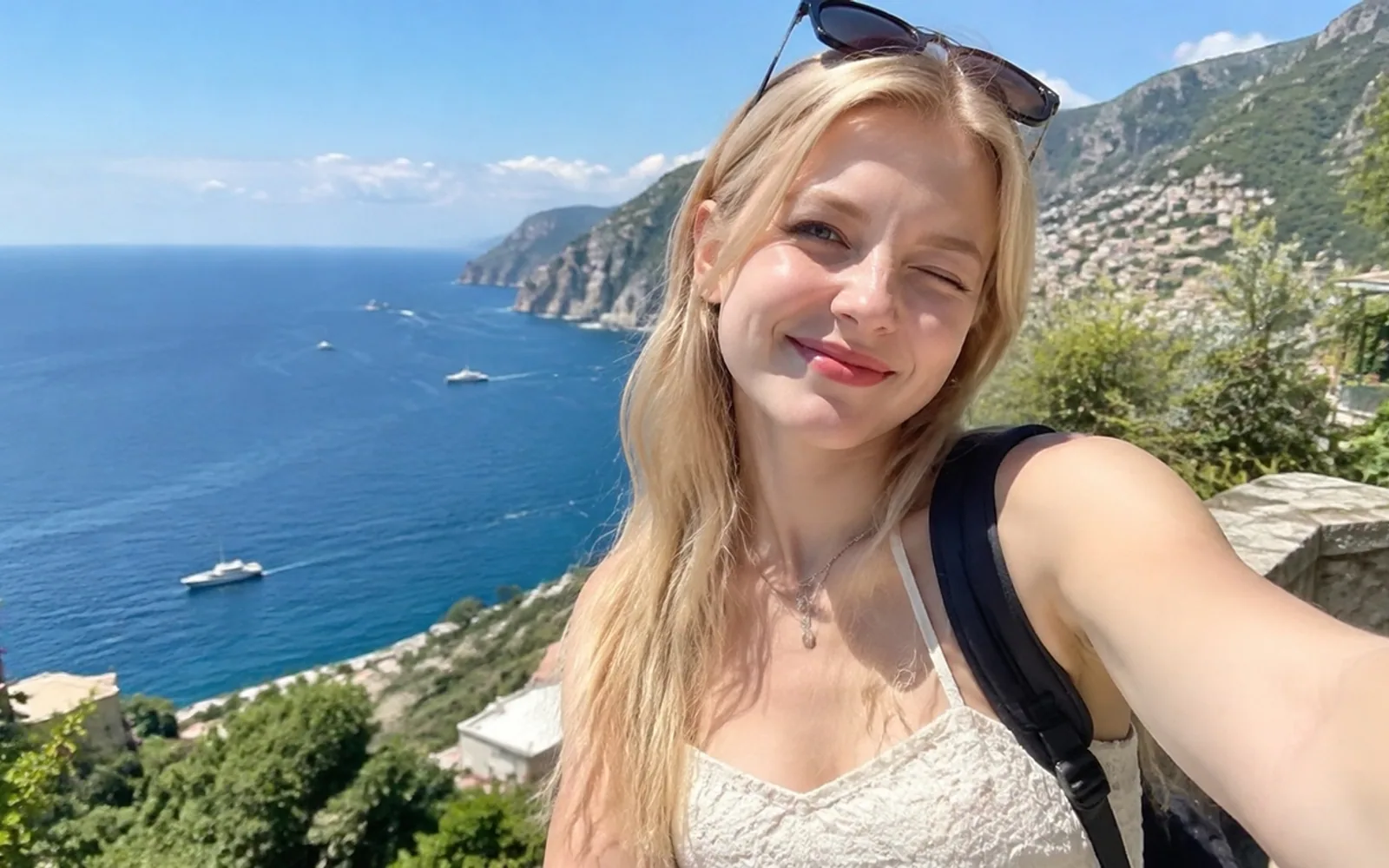
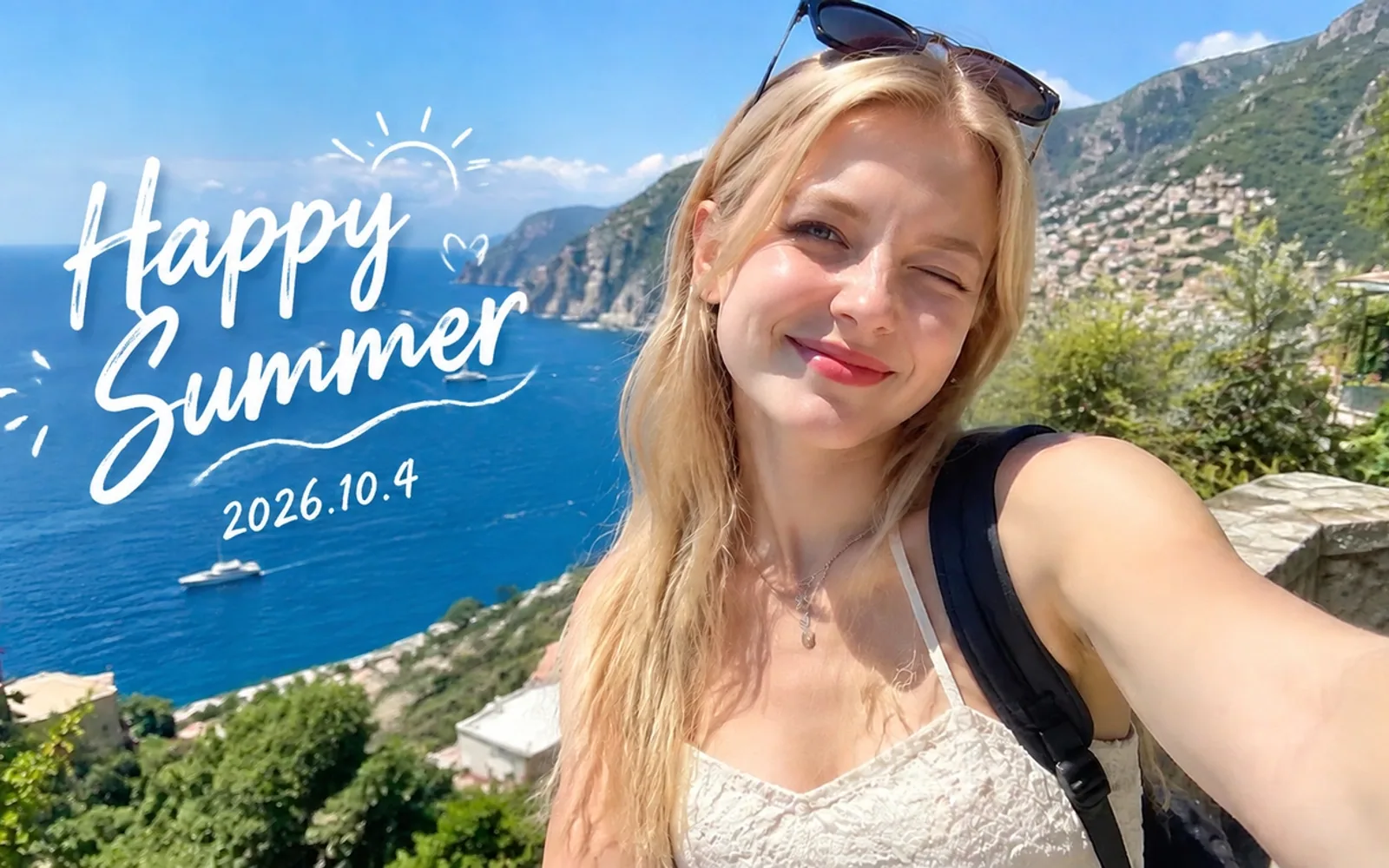
Brush over the text area and let AI continue the surrounding background through the selection.
Include the complete text shadow or background plate when it should disappear.
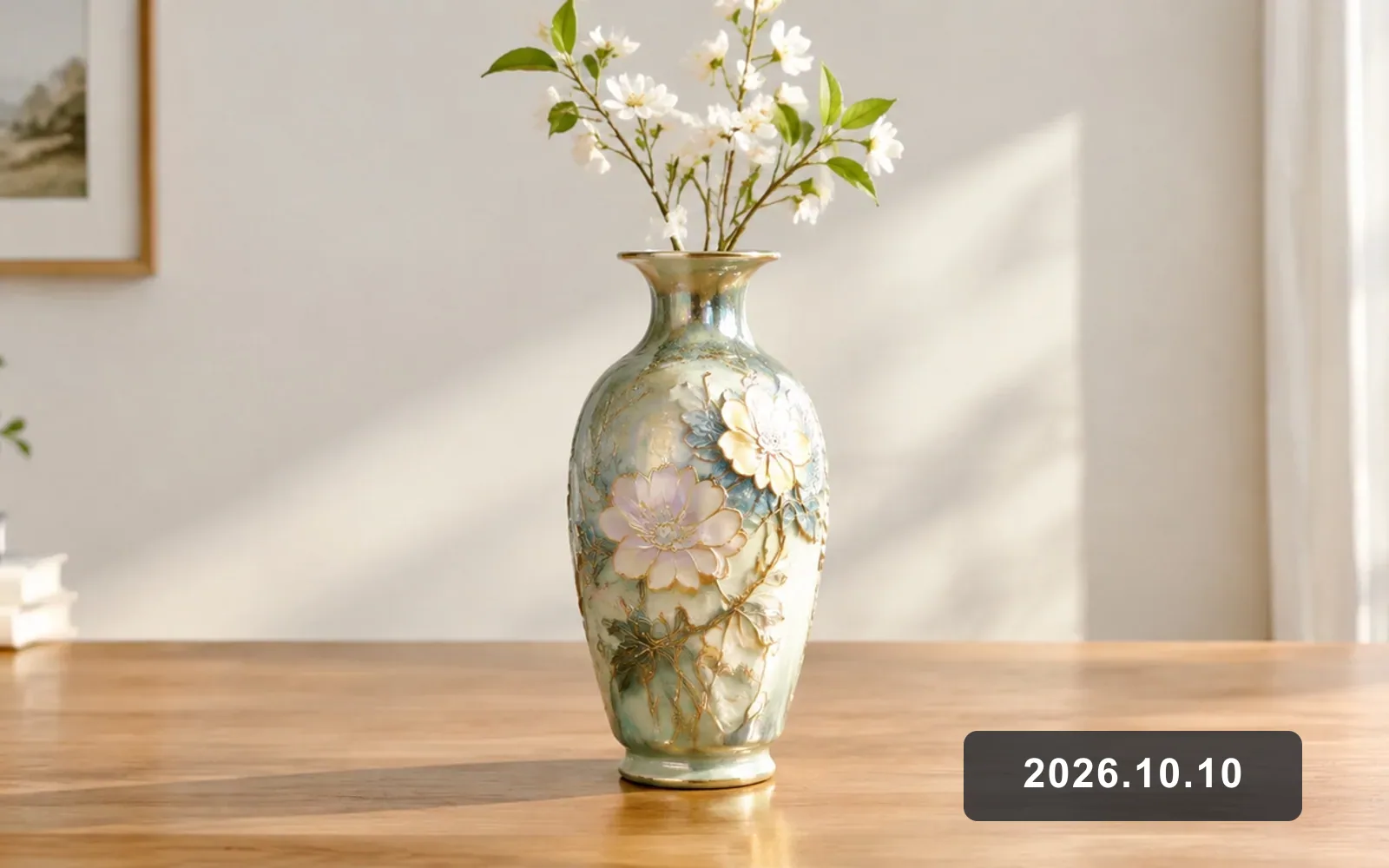
A compact brush selection removes the visible timestamp while preserving the surrounding photo composition.
Keep an untouched original because generated pixels are not recovered historical detail.The best text-removal result comes from treating the lettering, its outline and the background behind it as a small, deliberate repair area.
Use it for flattened date stamps, captions, product labels, subtitles and sign text in JPG, PNG or WebP files. It edits visible pixels, so it is not a replacement for editing a live text layer in the original design file.
Brush one subtitle line at a time, especially when it crosses a face or another detailed subject. Keep the selection close to the letters so nearby skin tone, edges and interface elements remain reference pixels.
Export the page to an image first, then select a short line or label instead of a whole paragraph. Smaller selections make it easier to preserve paper grain, rules and spacing around the edited area.
Handwriting and scripts such as Chinese, Japanese and Korean can be selected like any other visible mark. Complex strokes and text over illustrations need closer review because the tool generates a plausible background rather than recovering hidden source pixels.
On a flat color, even a slight brightness difference is easy to see. Tighten the brush to the glyphs and their edge shadow, then process separate labels individually instead of covering a wide clean area.
Clean visible text without rebuilding the whole image
Upload an image, select the lettering you no longer need and review the reconstructed background.
Remove text