 RemoveObjectFromPhoto
Upload your image
Choose a clear JPG, PNG or WebP image up to 10 MB.
Brush over a photobomber, tourist, or background person and let AI create a plausible continuation of the scene around them.
Sign in to process your selection · 1 free credit for new accounts
Only upload images you own or are authorized to edit. AI creates a plausible replacement; it does not recover hidden original content.
Select only what should disappear and keep the rest of the image visible for review.
Choose a clear JPG, PNG or WebP image up to 10 MB.
Adjust the brush, cover the complete object, and erase any selection that crosses an edge.
Choose Fast or Pro, review the reconstructed area, then download the AI result.
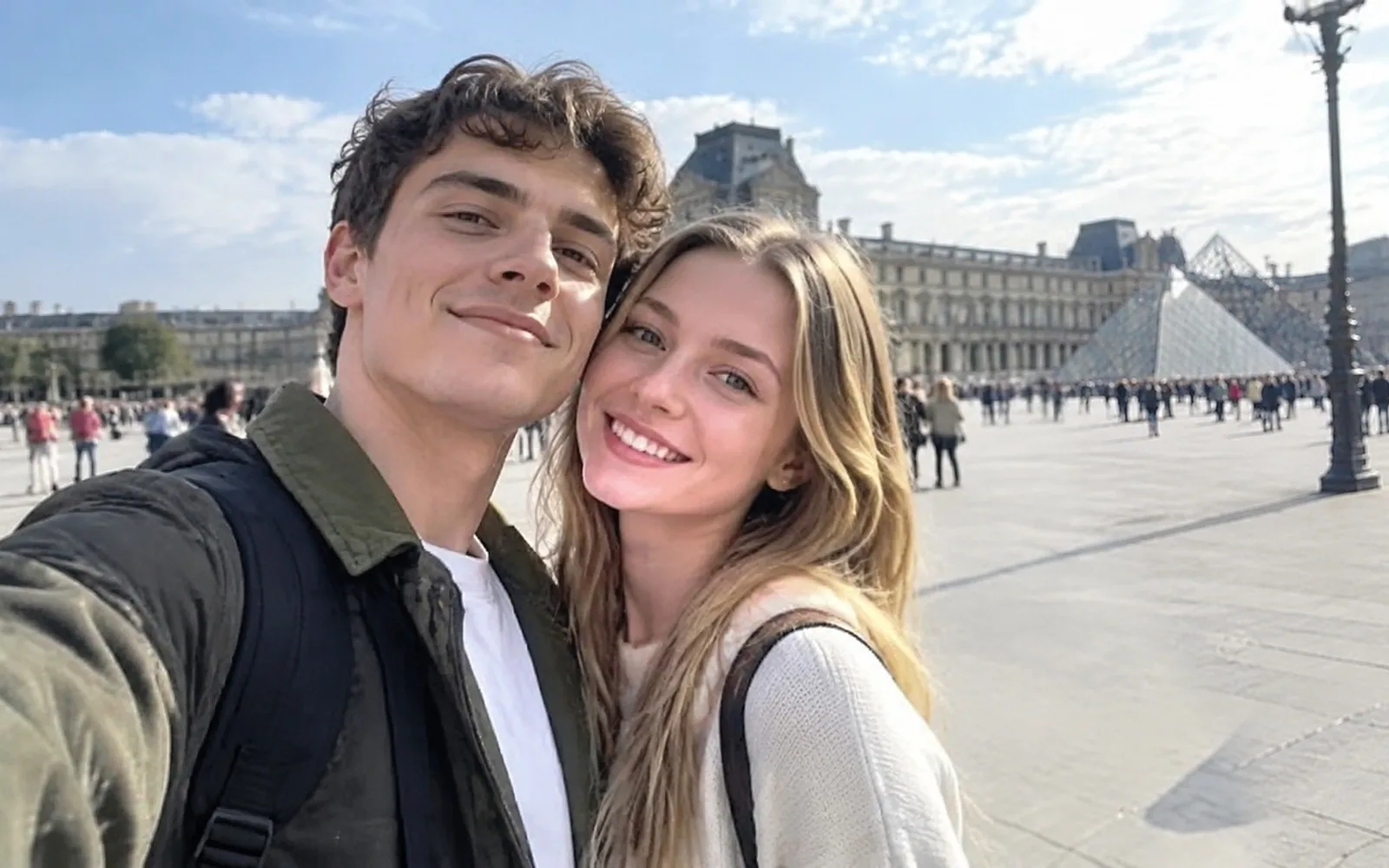
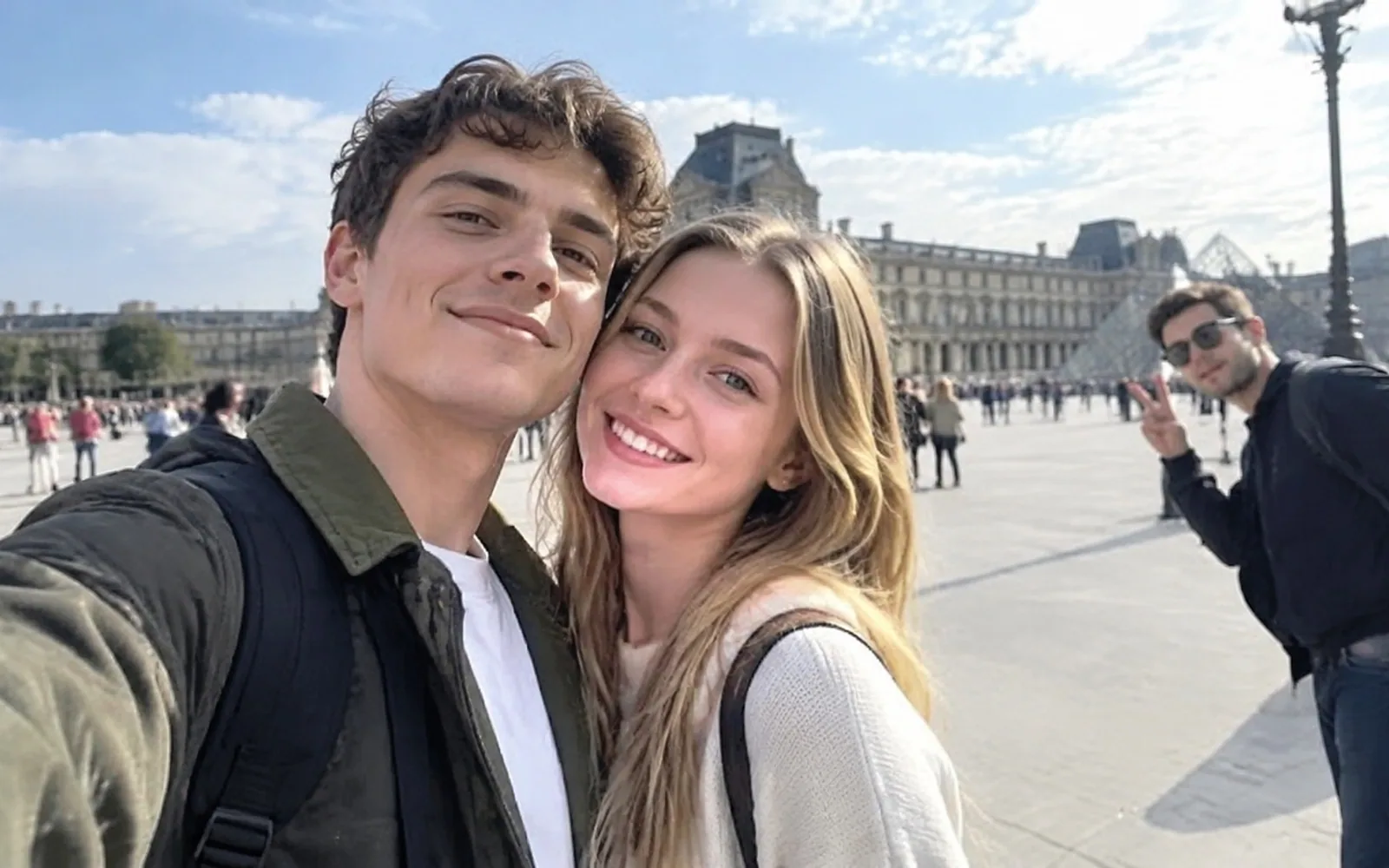
The selected person is removed while the plaza remains intact behind the main subjects.
Check hands, clothing edges, shadows and repeated lines before publishing.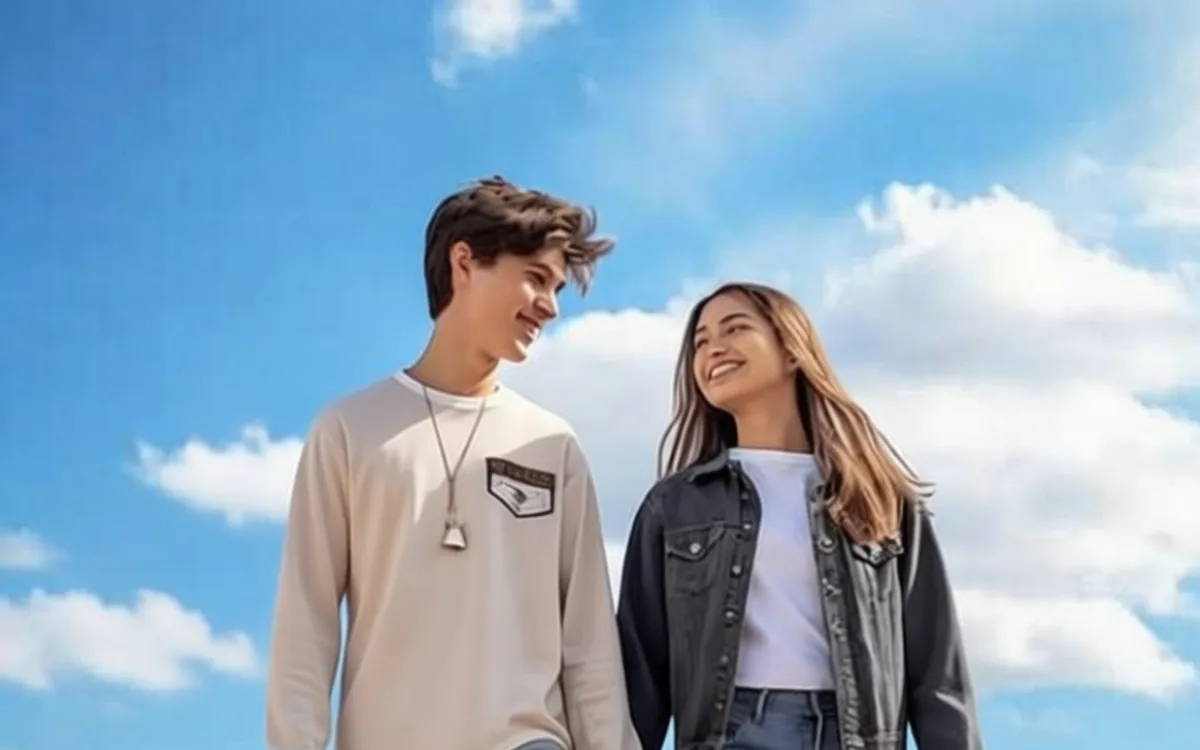
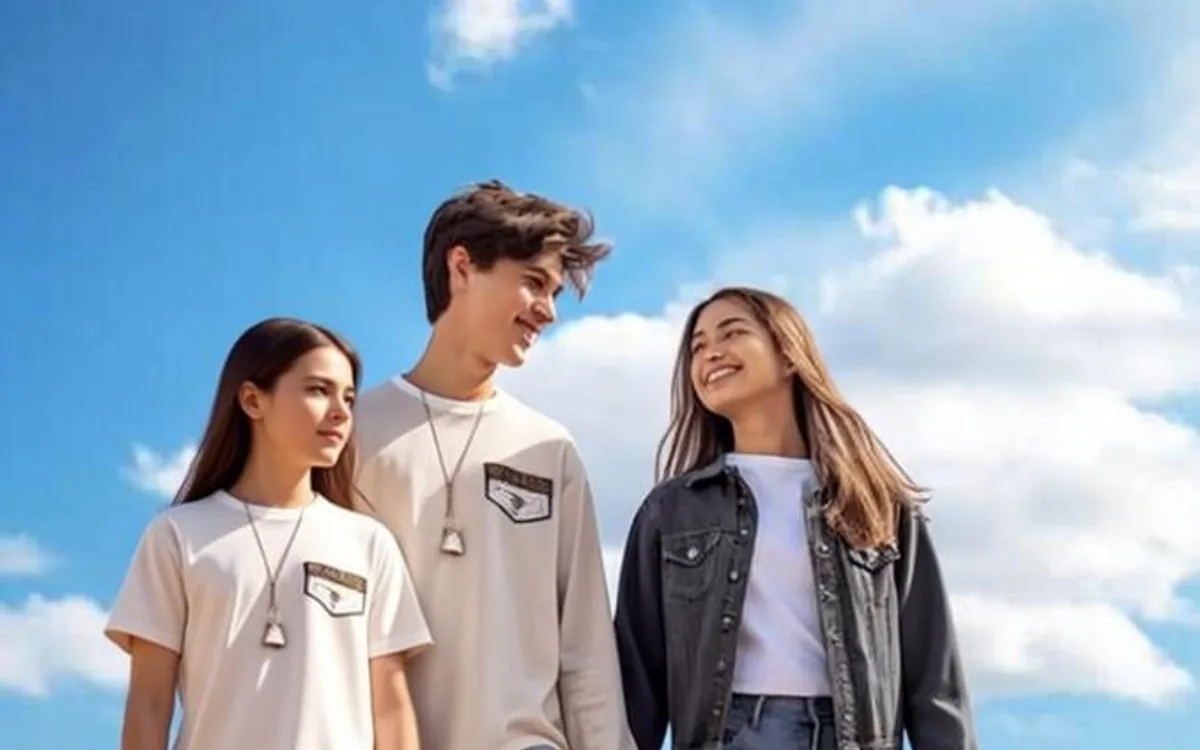
AI rebuilds the open walkway and background after the selected person is removed, while the two remaining people stay in place.
Inspect the reconstructed edge around nearby people before sharing the result.Use a precise selection when a passerby, photobomber or background crowd distracts from the people and place you want to keep.
Start by identifying the person who must remain, then paint only the unwanted person. Leave a narrow gap at the boundary between two people so the model has a clear protected silhouette to follow.
When someone is covered by another person or by an object, the missing background and body details are not visible in the source. If more than half of the target overlaps an important subject, a different photo or a smaller edit may produce a safer result.
Include a connected shadow or reflection when it belongs to the person you are removing; otherwise it can remain as a ghost. For loose hair, use a smaller brush around the outline instead of expanding the selection into the person you want to keep.
Work through a crowd in smaller groups and preserve visible building lines, railings and ground perspective between selections. One very large mask gives the AI less useful scene context than several focused passes.
Paint the removable person up to, but not across, the overlap edge. Review hands, sleeves and faces after processing; overlapping anatomy is an estimate, so use the untouched original when the result needs close inspection.
Remove the distraction, keep the moment
Choose a photo, brush the unwanted person and check the rebuilt background before downloading.
Remove a person